

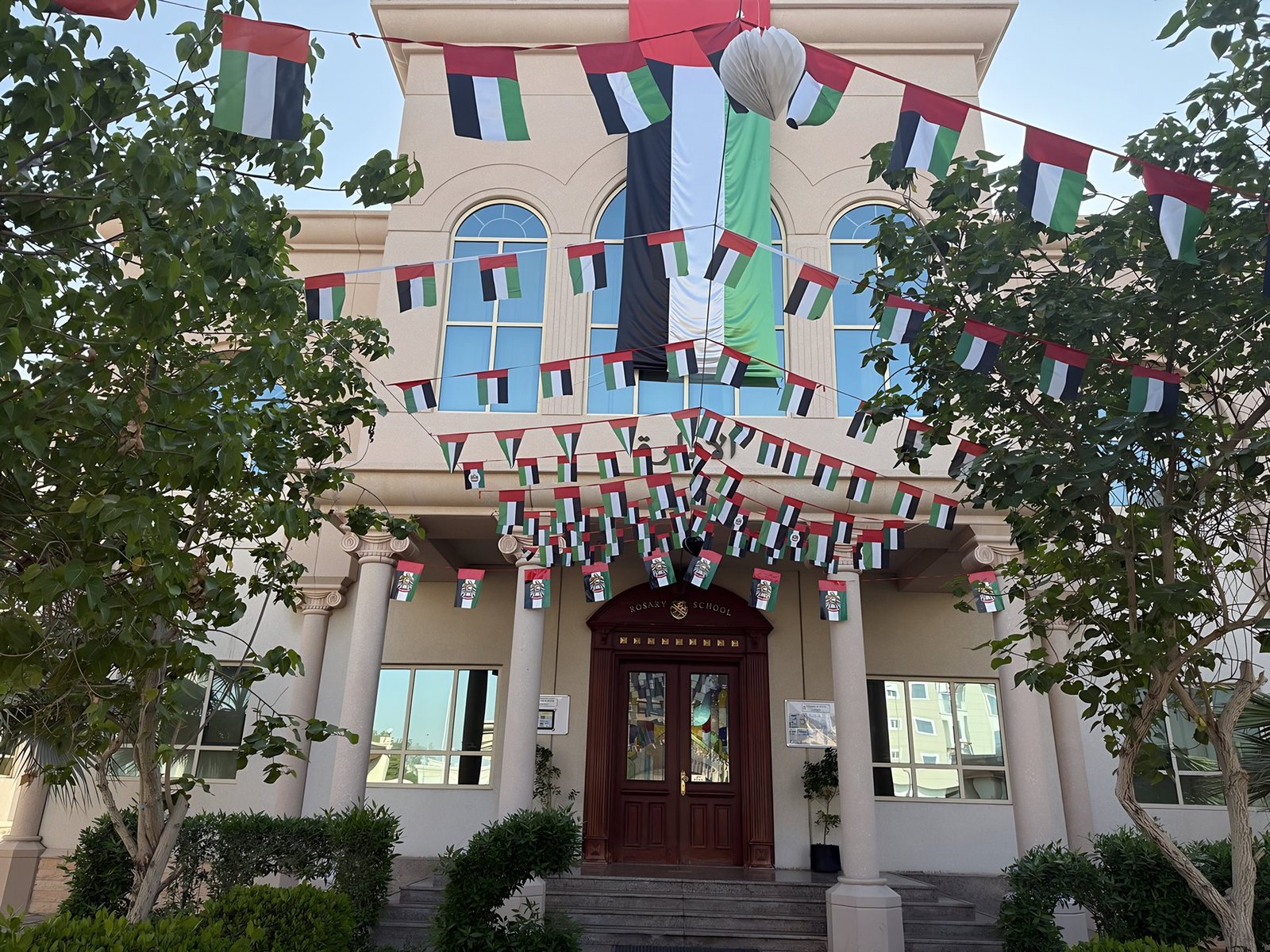
A clear starting point for everyone at Rosary. Find the information you need or prepare a question for the adviser in Arabic or English.
For students
Understand a lesson, practise a skill or plan your study. Share your year group, subject and topic without your name or private details.
For teachers
Draft a lesson plan, activity or practice questions. Give the year group, learning goal and lesson duration, then review suggestions before use.
For parents and guardians
Follow news and dates, understand school procedures and find the right team for support.
For visitors
Get to know the school and arrange your visit with Reception before coming to campus.
For parents
Student Result Certificates
Student result certificates are issued through the Sharjah Private Education Authority (SPEA) Daleel portal. Parents can download their child’s certificate directly from the portal.
Download from SPEA Daleeldaleel.spea.shj.ae- Open the portalGo to the Daleel portal of the Sharjah Private Education Authority (SPEA).
- Sign inSign in with UAE PASS, or with your email / mobile number and password. New users can create an account.
- Download the certificateFollow the portal to your child’s certificate and download it.
Need help? Contact the school office: +971 6 534 4118 / info@rosaryschoolbr1.com
On your phone
School Apps
Parents need two main apps: ORISON to stay in touch with the school, and Maaman to follow the school bus. For learning apps, students use the ones their class teacher specifies.
For parents

ORISON School V2
For parentsFollow school messages and your child’s reports.
- Install the app from your store.
- Username: RSMUWP followed directly by the student number on the school receipt.
- Password: the one provided to you by the school.



Maaman Parent – مأمن
For parentsShows the bus location and notifies you when your child boards and leaves the bus.
- Make sure the guardian’s ID number and phone number are registered with the transport coordinator.
- Choose Register Account, then Registered Guardian.
- Enter your details and the verification code sent to you by SMS.
For students: learning apps & platforms

BOOKR Class
For studentsIllustrated English stories with word pronunciation, followed by activities on what was read.

BOOKR Next
For studentsA separate English-learning app with stories and topics suited to older students. If the teacher’s instructions say “Next”, this is the app.

Matific
For studentsMaths practice through games and interactive problems, using the student account set up by the school — the same account also works on a computer.

Twin Science
For studentsExplore science, technology and engineering through interactive activities and challenges, using the student’s own account for school activities.

Amazing People Schools
For studentsMeet inspiring people and explore qualities such as perseverance and empathy, and how to apply them in school life.

BounceTogether
Web platform · no downloadSchool wellbeing surveys from a phone or computer — no app download needed.
- Open the sign-in link in your browser.
- Sign in with the school details, or with a QR code if you were given one.
- Choose the survey assigned to you.
Never share passwords with anyone. For sign-in problems contact the school office; for Maaman registration contact the transport coordinator. You can also ask the virtual adviser to walk you through any app.
Getting the most from your adviser
- Choose a starting point or type a question. It is not sent automatically.
- Use text or start voice with your permission. In a noisy place, choose Hold to talk.
- The optional camera can show an object or exercise; avoid other people’s faces and private documents, and turn it off afterwards.
- Ask for sources for school information. Fees, individual decisions and urgent concerns need direct school contact.
For ORISON access or a student record, contact the school through authorised channels. The public assistant cannot open accounts or private files.